

Office Ergonomics Guide: How to Create a More Comfortable and Productive Computer Workstation
Because of the nature of modern office and work environments, people spend long hours working in front of computers every day. Consequently, setting up an office environment according to ergonomic principles to help relieve fatigue from extended desk work has become an essential priority.

This involves much more than simply buying an ergonomic office chair or a standing desk. The way your chair is adjusted, monitor height, keyboard and mouse placement, foot support, and whether you regularly change posture throughout the day all determine whether a workstation is truly ergonomic.
First, evaluate how you sit every day
Many recommendations for proper sitting posture emphasize "keeping your back straight" and "maintaining a 90-degree angle at the knees," but ergonomics does not require the body to maintain a rigid standard posture for long periods.
What is more important is maintaining a relatively natural Neutral Posture: the head and torso are aligned along the same natural vertical axis, shoulders are relaxed, elbows are close to the body, forearms are roughly parallel to the ground, and wrists avoid bending noticeably up, down, or sideways. Both feet should receive stable support, the thighs and hips supported by the seat cushion, and the back relieved of pressure through the combined support of the backrest and lumbar region.
In OSHA's computer workstation guidelines, elbows can generally be kept at approximately 90° to 120° rather than strictly fixed at 90°; the position of the knees should also be adjusted based on a combination of the user's height, seat height, and desk height.
How to adjust a newly purchased ergonomic chair
A very common situation in offices is getting a new chair, unboxing it, and starting to use it immediately. The seat height, armrests, and lumbar support remain at their factory settings, and after feeling uncomfortable for a few days, you begin to doubt whether the chair is suitable for you.
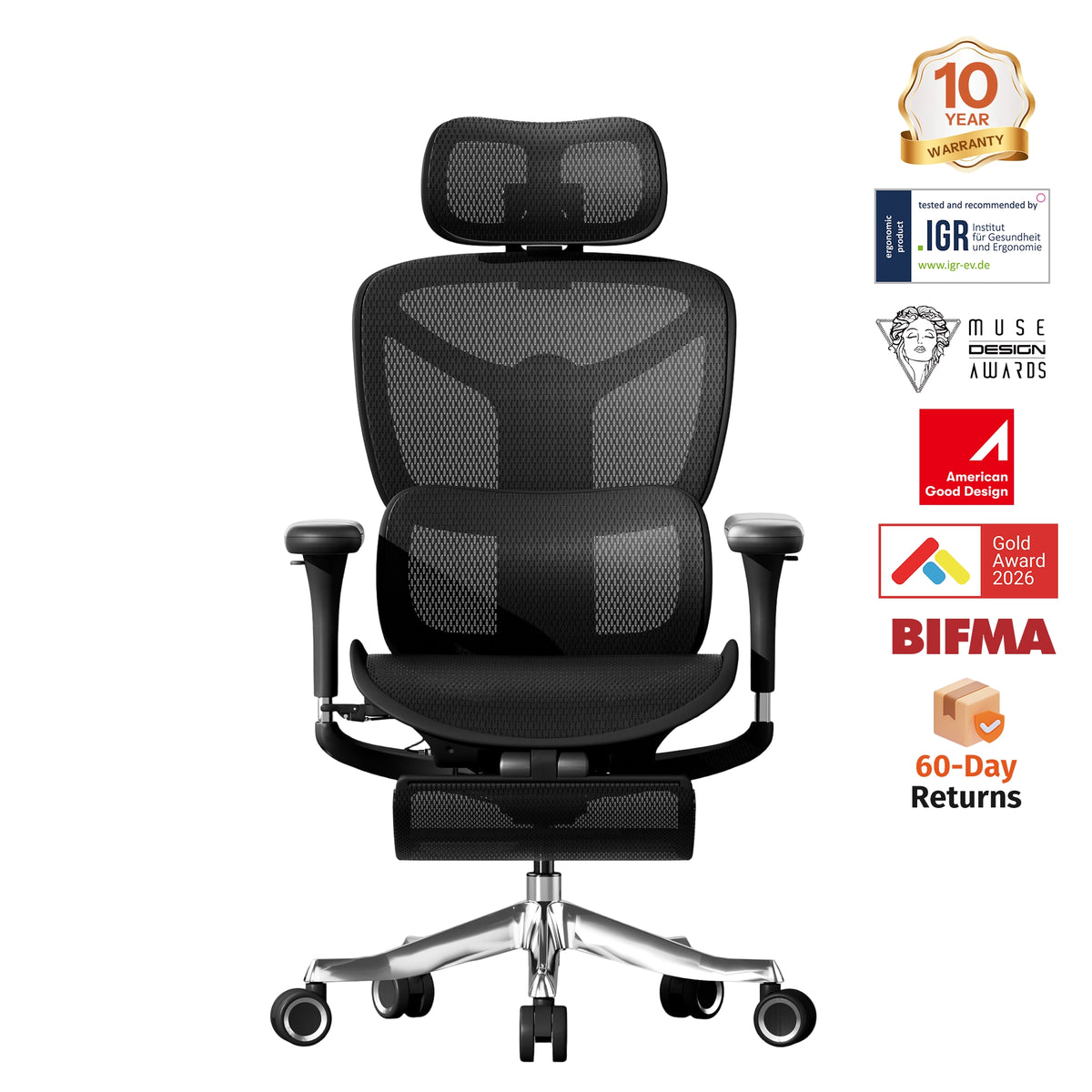
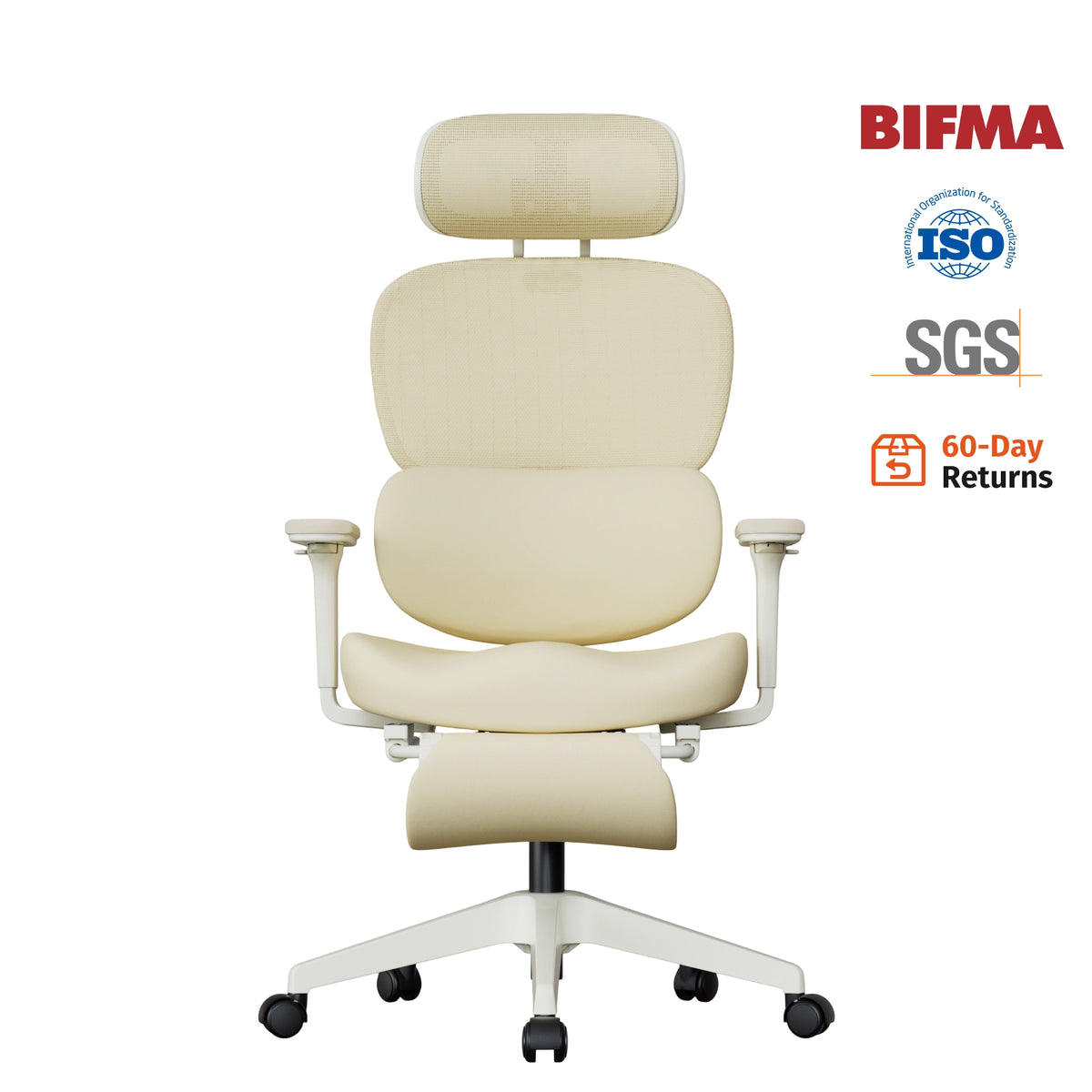
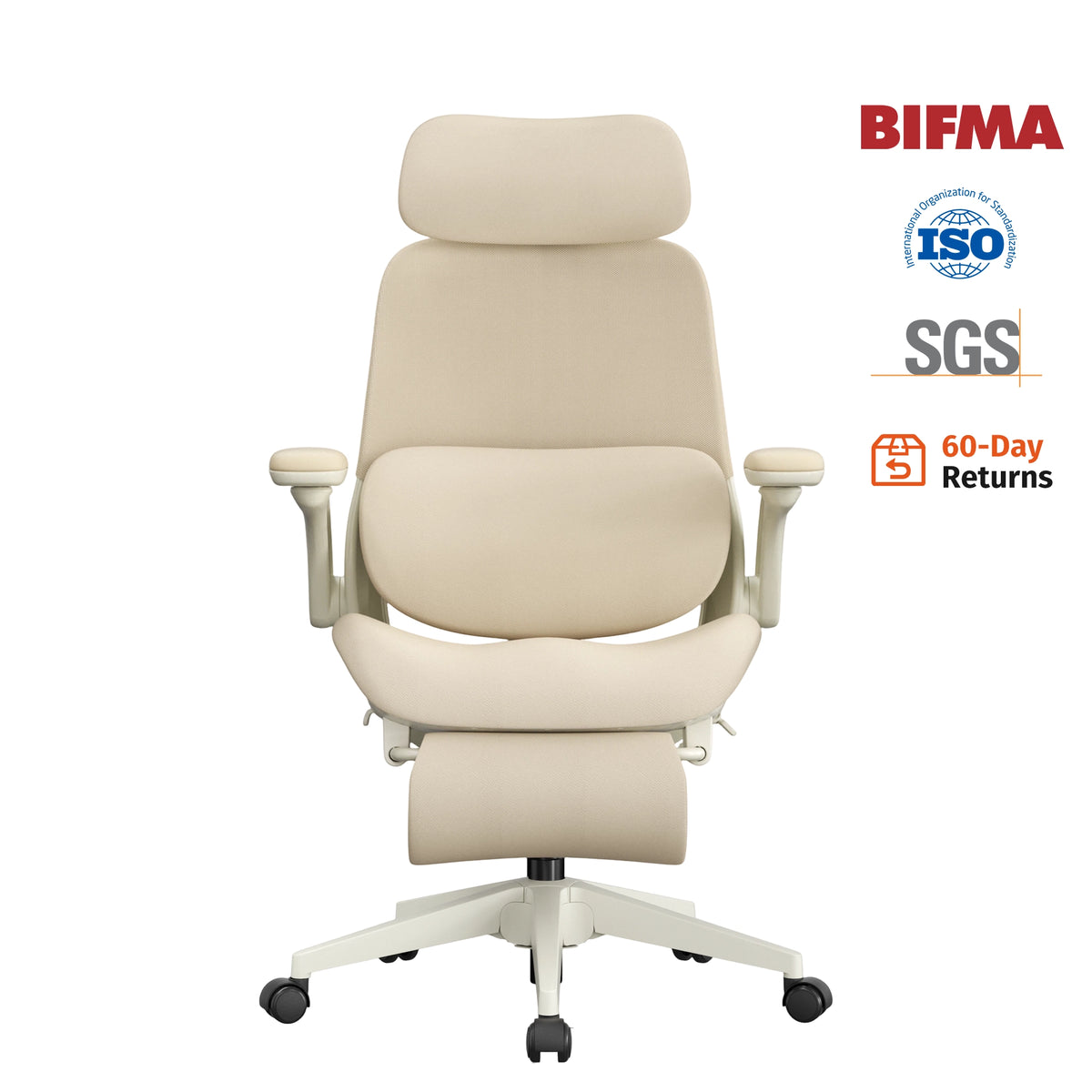
Properly adjusting an ergonomic chair first requires adjusting the seat height so that both feet can rest flat on the floor. If you have to raise the seat to accommodate a taller desk, you can add a footrest rather than leaving your feet suspended for long periods. Subsequently, check whether the seat cushion can stably support your thighs while preventing the front edge of the cushion from continuously pressing against the back of your knees.
The backrest should be able to support the natural curve of your lower back. If the office chair features adjustable lumbar support, you can adjust its height and support strength according to your lumbar position; armrests should allow your forearms to receive moderate support while preventing your shoulders from being forced to shrug because the armrests are too high.
Whether the height of armrests is suitable directly affects the condition of your shoulders and neck
Armrests are the part most easily overlooked when adjusting an ergonomic chair. If the armrests are too high, your shoulders will be pushed upward while sitting; conversely, if they are too low, your arms will not receive sufficient support. When armrests are too wide, your elbows are forced to flare outward, and if they are too long, the chair may be prevented from pulling close to the desk.
A simple way to judge whether the armrest position and height are appropriate is to ask: Are your shoulders in a relaxed state during normal typing?
If you constantly feel tight in your neck and shoulders at the end of each workday—even without noticeably tilting your head down—the issue may stem from the desk or armrests not being at the correct height and position.
Therefore, when choosing an ergonomic chair, you should look beyond just how many dimensions the armrests can adjust, and focus on whether those adjustment ranges genuinely adapt to both the user and the desk.
Monitor height should minimize tilting your head up or down, rather than forcing a strict eye-level alignment
A common belief regarding monitor height is that "the center of the screen must be exactly level with your eyes," but this description is actually inaccurate. For most standard monitors, OSHA recommends that the top of the screen be placed roughly at or slightly below eye level, with the center of the screen naturally falling about 15° to 20° below your horizontal line of sight. The monitor should also be placed directly in front of your body at a comfortable viewing distance.
If the monitor is set too low, you tend to continuously tilt your head down; if it is too high, you may need to raise your chin or tilt your head backward. Both situations increase strain on the neck and shoulder area.
If you use dual monitors, consider how frequently you use each screen. If both screens are used equally, place them close together and centered relative to your body. If one screen is clearly your primary display, it should be placed directly in front of you. Otherwise, you might spend the entire afternoon slightly turning your head without realizing that the workstation layout itself is asymmetrical.
This issue requires special attention when working on a laptop for long periods. Because the screen and keyboard cannot be adjusted independently, using an external keyboard and mouse alongside a laptop stand to elevate the screen makes it much easier to set up a proper ergonomic workstation than simply attempting to adjust your posture.
The keyboard and mouse should not force your body to reach for them
The placement of your keyboard and mouse directly determines whether your wrists, elbows, and shoulders can remain in a natural state. The keyboard should be positioned directly in front of your body, allowing your shoulders to relax, your elbows to stay close to your torso, and your wrists to align continuously with your forearms. If the keyboard is set too high, you may unconsciously shrug your shoulders; if it is too low or placed too far away, it easily leads to excessive wrist bending or leaning forward.

The mouse is best positioned at a height similar to the keyboard and as close to your body as possible. Placing the mouse far away forces your arm to extend outward continuously, placing extra strain on your shoulder over time. In its ergonomic recommendations for keyboards and mice, OSHA similarly emphasizes minimizing reach and keeping wrists in a neutral position.
Prolonged sitting should not be left for the chair alone to solve
A good chair can make long working hours more comfortable, but "sitting comfortably" and "sitting continuously" are two different things.
A common misconception in the office is believing that once you switch to an ergonomic chair, you should be able to sit continuously for hours without getting up. In reality, even if the chair support and workstation setup are well-designed, the body still needs movement.
Rather than mandating that everyone must stand up every 40 minutes, it is better to integrate movement into your workflow.
Stand up and walk around while taking phone calls, move around when getting water, step away from your seat when handling non-computer files, or perform a few simple shoulder, neck, and leg stretches periodically throughout the day. These practices are far more practical than remaining in a single posture for most of the day.
The same logic applies to standing desks. Their value lies not in shifting someone from "sitting all day" to "standing all day," but in providing opportunities to change postures.
Eye fatigue also changes your body posture
If you find yourself leaning closer and closer to the screen during afternoon work, it is not necessarily just a bad sitting habit. It could also be that screen glare, ambient light that is too bright, text sizes that are too small, or even an inappropriate monitor distance cause you to lean forward unconsciously. Over time, an otherwise reasonable chair setup will also be compromised.
Therefore, office ergonomics should also take the visual environment into account.
Ideally, windows should not create direct, high-contrast reflections on the monitor surface. Screen brightness does not need to be turned up blindly; instead, it should be adjusted to match the surrounding environment. After looking at a screen continuously for a period of time, shifting your gaze to a distant object also helps relieve visual strain from long hours of close-up work.
How to tell if your office workstation needs adjustment?
Simply observing a few of your most frequent movements during work is usually enough.
If you constantly slide forward in your seat, check the seat depth, lumbar support, and monitor position; if you frequently shrug your shoulders, see if the desk, keyboard, or armrests are set too high; if your right shoulder fatigue builds faster than your left, notice whether your mouse is placed too far away; and if your legs constantly feel unsupported, recheck your seat height and foot positioning.
In many cases, ergonomics is not about searching for a rigid standard answer, but rather identifying these long-repeated minor issues and making adjustments one by one.
Conclusion: An ergonomic chair is only one piece of the workstation
Improving your office setup can certainly begin with a well-suited ergonomic office chair, but it should not stop there. The chair's seat height, seat depth, lumbar support, and armrests need to match the user; the positions of the monitor, keyboard, and mouse need to be arranged around the body; and opportunities to stand, move around, and shift postures throughout the workday must be maintained. Only when these factors come together do they form a truly ergonomic workstation.
For long-term computer workers, rather than constantly searching for the so-called "most correct sitting posture," it is far more worthwhile to observe which movements you repeat most often and which areas experience fatigue first, and then fine-tune your chair and desktop setup accordingly.
Effective office ergonomics does not force you to maintain a single, rigid posture. On the contrary, it provides your body with sufficient support alongside enough freedom to change positions naturally.
FAQ:
1.How to properly adjust an ergonomic office chair?
When adjusting an ergonomic office chair, start with the seat height so that both feet rest stably on the floor or a footrest, then check the seat depth, lumbar support, backrest, and armrest positions. The lower back should receive natural support, while the armrest height should allow the shoulders to remain relaxed and elbows kept close to the body. Specific settings should be adjusted based on the user's height, desk height, and working posture, rather than applying fixed rigid parameters.
2.What is the proper sitting posture for computer work?
The key to a proper sitting posture for computer work is maintaining a relatively natural Neutral Posture. Avoid holding your head forward or tilted down for extended periods, keep your shoulders relaxed, keep your elbows close to your body, and allow your forearms and wrists to stay as natural as possible. Your back should rely on the backrest and lumbar support to distribute pressure, while your feet receive stable support. Rather than forcing your body to remain completely rigid and upright, it is far more important to minimize staying locked in a single posture for long hours.
3.How high should a monitor be placed?
Generally, the top of the monitor should be set near eye level or slightly below it, allowing your line of sight to fall naturally downward when looking at the screen without continuously tilting your head up or down. At the same time, the monitor should be positioned directly in front of your body at a comfortable viewing distance. If you work on a laptop for long hours, consider pairing it with a stand along with an external keyboard and mouse.
4.Can an ergonomic chair really improve the experience of long hours of sitting?
The primary function of an ergonomic chair is to offer customizable adjustments and body support—such as seat height, lumbar support, backrest recline, and armrest position. However, an ergonomic chair cannot fully offset the issues caused by sitting for prolonged periods. A more practical approach is to combine proper chair adjustments with frequent posture changes, brief standing breaks, and regular daily movement.
5.How should a keyboard and mouse be positioned for proper ergonomics?
The keyboard and mouse should be placed easily within reach, avoiding the need to reach forward continuously to operate them. When using the keyboard, keep your shoulders relaxed, your elbows close to your body, and your wrists as natural as possible. The mouse is best positioned at a height similar to the keyboard and as close to your body as possible to reduce repeated outward reaching of the shoulder.
6.How to build an ergonomic home office setup?
A home office environment can be optimized by adjusting your ergonomic chair, desk height, monitor placement, keyboard and mouse positioning, and room lighting. First, ensure the chair provides adequate body support; second, adapt the monitor and input devices to fit your body, rather than constantly forcing your body to accommodate the equipment. Additionally, minimize screen glare, and regularly change postures and move around throughout the workday.


